
When the connection drops, the till keeps taking payments at the counter: it holds on to your sales and sends them as soon as the network is back. Here is what works, what has to wait, and the one thing to have done beforehand.
Video coming soon
The one condition: a first online start
Offline, the till works with what it learned the last time it opened with internet: your products, your prices, your team. So it must have been paired and opened online at least once.
Each staff member must also have signed in on this tablet, with internet, within the last 60 days. That is what lets the till recognise their code on its own.
1Spot the outage
A red Offline badge appears at the top of the till, with the number of sales waiting. That number is money already taken that has not reached your back office yet.
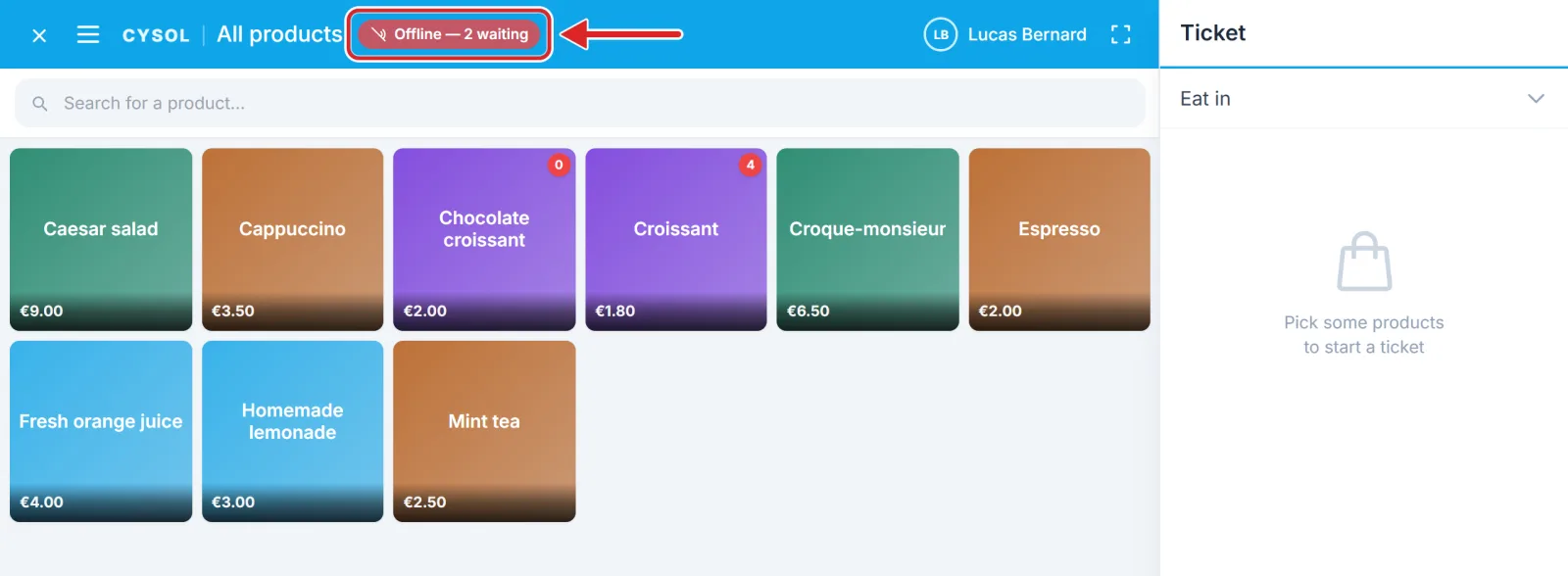
2Sign in with your code
On the home screen, the CONNECTION LOST banner warns the team. It says Direct sales only: no new table can be opened, but a table already open can still be paid. Tap your profile and type your code: the till checks it by itself. Profiles marked Sign-in required have never been used on this tablet; they will have to wait for the network.
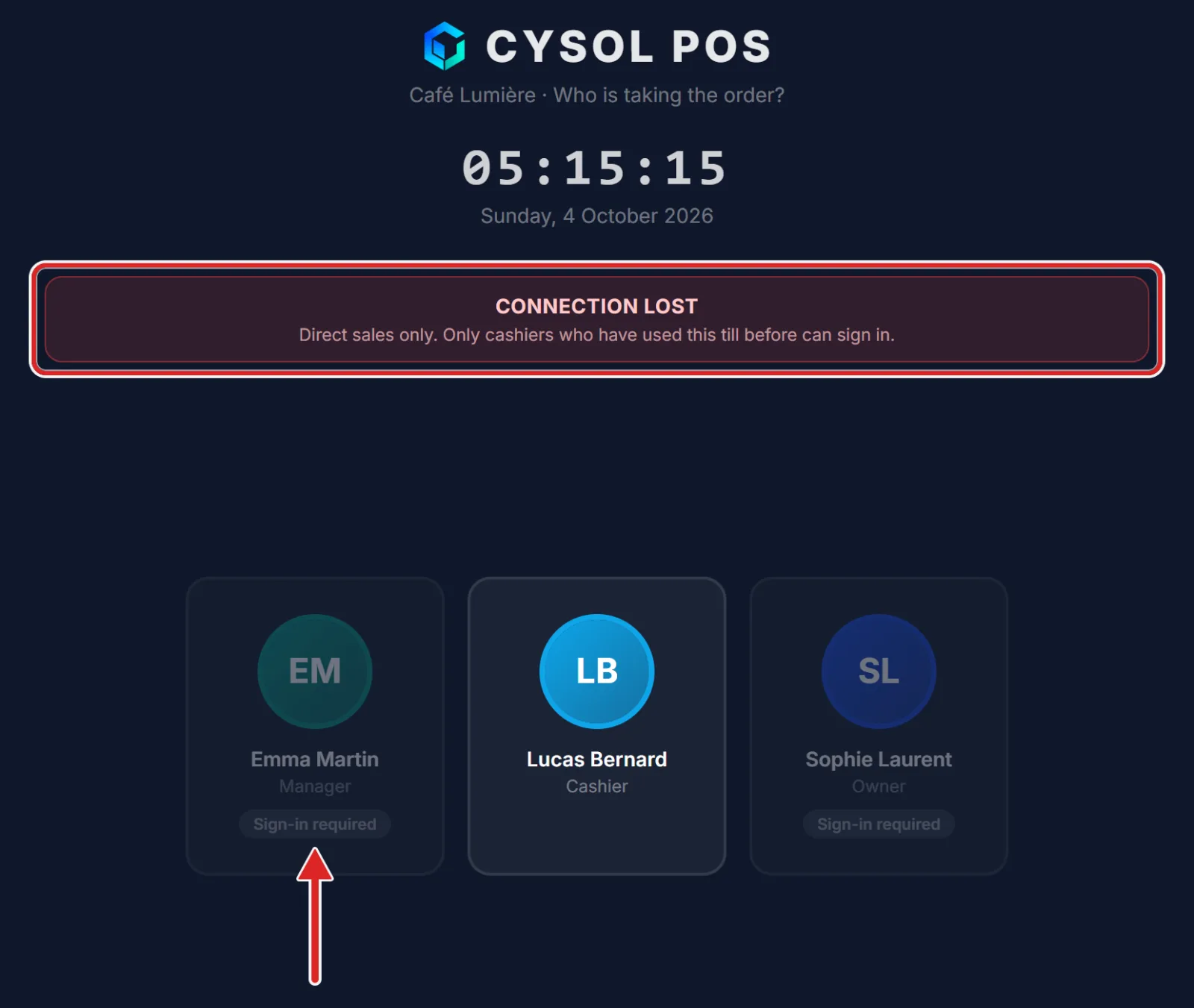
3Take payments as usual
Add products, tap Take payment, then Confirm: nothing changes. The ticket prints with a temporary number starting with "OFF-". The till does not ask for a cash float during the outage.
4With tables (Pro plan)
A table that is already open can still be paid, and you can add products to it. But nothing goes to the kitchen: the Send button reads Offline. Tell the kitchen in person.
Opening a new table is not possible: use a Direct sale. Was an order in progress that had not been sent yet? The Take payment as a direct sale button keeps it and takes payment without a table.
5Let the till catch up
When the network comes back, the till notices on its own. The badge shows Syncing…, then disappears: your sales are in the back office, at the time you took them, and stock follows.
Important — While sales are waiting, they only live on the tablet. Do not clear the browser data or switch devices until the badge is gone.
What waits for the network
- opening a table, sending to the kitchen, splitting or moving an order;
- cancelling a ticket, Invoice, looking at My tickets;
- recording an expense or an advance, clocking in or out, closing the till.
A ticket that was not sent
Once in a while, the server rejects a sale made offline. It is never deleted: the ☰ menu shows Tickets not sent, and the list gives the reason for each refusal. These sales are not in your figures, so let the owner know. Once the case is sorted, tap I have dealt with this ticket — remove it.
